
Select an option
Toggle Nav


Search
How to use the Text Tools in Design & Print Online
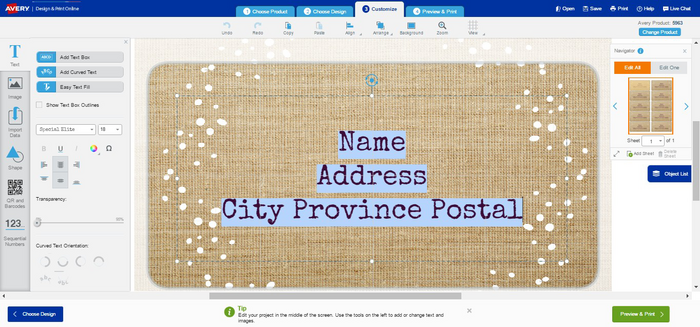
The Text tools on the left of the Customize screen will open when you click on a text box or when you click on the Text icon.
Text Boxes: If you started with a blank template, or if you want an additional text box, click Add Text Box. If there’s a text box in your design, just click to select the sample text, delete and type in new text. Click the edge of the text box to drag or format all the text in the box at once. This includes font style, font size, font colour, attributes and alignment selections. You can also select individual text items and make changes just to the selected portion.
To move a text box, click on the text box to select it. Then hover your cursor over any side of the text box until the four arrows appear, and click and drag to where you want it. You can also click on the text box and then use the arrow keys on your keyboard to move it up, down or to either side. Hold down the shift key while you press an arrow key to make smaller moves. To resize a text box, click on the edge or a corner and drag to stretch.
Text Size: Change the size of your font using the drop-down number that appears in the menu. You can type in specific sizes if they are not listed.
Text Style: You can change the font of your text using the drop down menus on the left. To change the colour, click on the colour wheel. If you want to make your font see-through, the Transparency slider can be used to add opacity. This feature is great when placing text over photos.
Add Circular Text: When you click this button, a big text box is placed on your design for you to work with. You can change the font styling just like in standard text boxes, but you can also change the orientation of the text and where on the circle it appears using the Curved Text Orientation buttons at the bottom of the text section. If you don’t like what you’ve done, just click undo.
Note: With circular text, you’ll likely need to use the Object List on the lower left of the screen to rearrange the layers of your project because the text box is so large it can block the other objects in your project.
When you’re happy with your design, click Save, then Preview & Print to continue.

Please complete your information below to login.