How to use the Navigator in Design & Print Online


Navigator - Design & Print

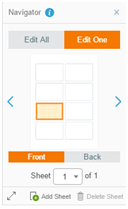
On the right side of the Customize screen is the Navigator where you can choose to Edit All the  items on your sheet or to make changes to individual items using Edit One.
     
      To select a different card, label or tab, just click the section  you want to edit. The Navigator also  provides a live preview of your project as you make changes. The size can be  increased using the arrows at the lower left corner of the Navigator.
     
  Note: It’s best  to make your design changes to the entire page at once using Edit All, then switch to Edit One for individual changes. Once  you switch to Edit One and make a  change to an individual label or card, that item might be excluded from other  changes you make to the whole sheet.


Please review VERY carefully if you have switched  back and forth between Edit One and Edit All.

Loading...